Send Web to KindleAdd to Chrome
Back to Blog
GuideJuly 9, 2026·4 min read

How to Use Send Web to Kindle

Found a great article but don't want to read it on a screen? Send it to your Kindle in seconds — no account, no server, no subscription needed.

Send Web to Kindle extension popup open on an article page in Chrome, showing the 'Send to Kindle' button ready to be clicked

Send Web to Kindle is a lightweight Chrome extension that converts any web article into a clean EPUB file and delivers it to your Kindle via Gmail — entirely on your device. Nothing is sent to our servers.

This guide walks you through the full setup and shows you how to send your first article in under two minutes.

Before You Start

  • A Google Chrome browser (desktop)
  • A Gmail account you'll use to send files
  • A Kindle device or app with a Send-to-Kindle email address set up

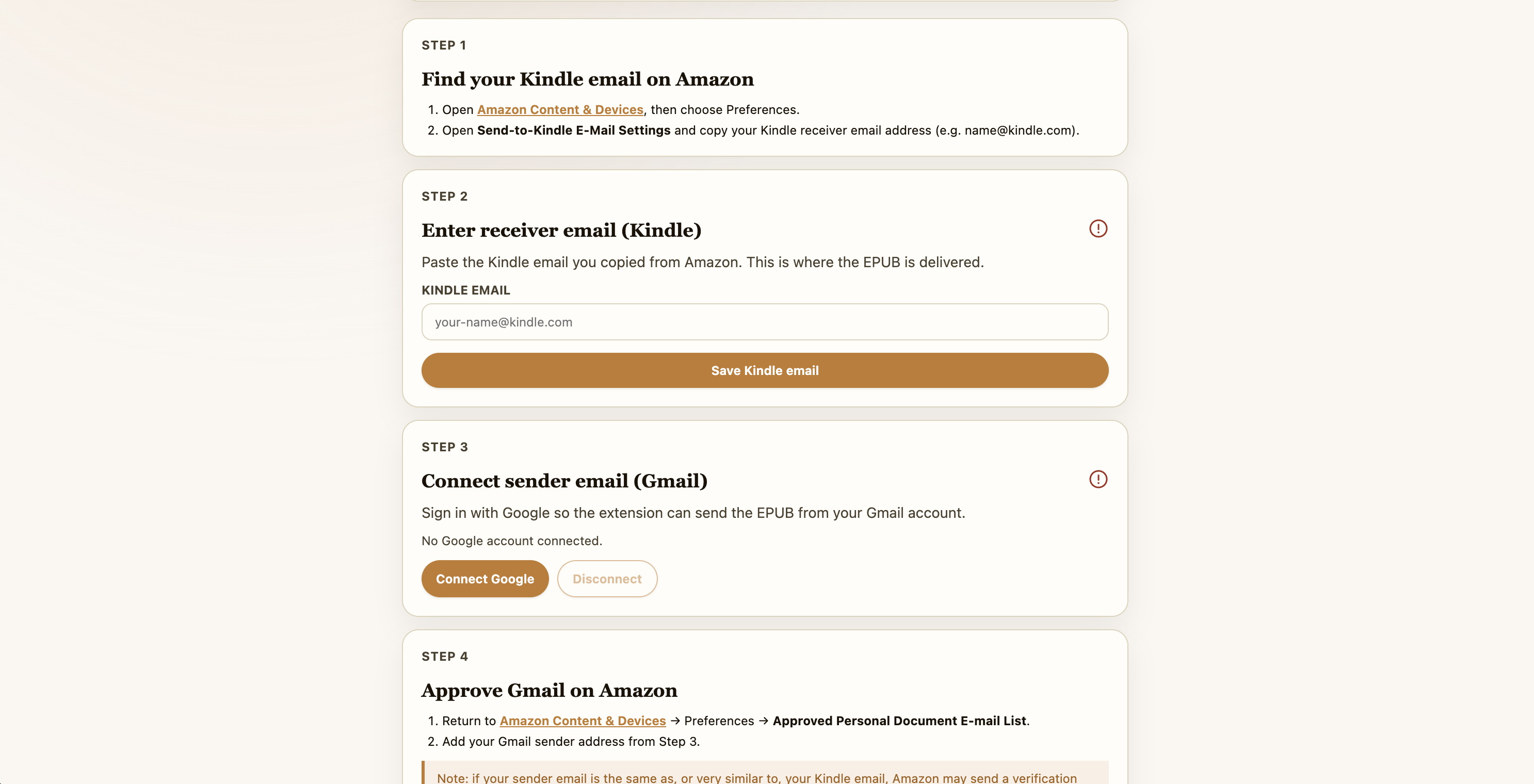
Don't know your Kindle email? Find it in your Amazon account under Manage Your Content and Devices → Preferences → Personal Document Settings. It looks like yourname@kindle.com.
Step 1 — Install the Extension

Open the Chrome Web Store listing and click Add to Chrome. Confirm the permissions dialog — the extension needs Gmail send access to deliver your articles.

Step 2 — Open Settings & Enter Your Details

After installation, click the extension icon in your Chrome toolbar (puzzle piece → Send Web to Kindle). The settings panel opens on first launch. Enter:

  • Your Kindle email address (e.g. yourname@kindle.com)
  • Your Gmail address you'll send from

Click Sign in with Google to grant the extension permission to send email on your behalf. This is a one-time setup.

Send Web to Kindle settings panel showing the Kindle email field, Gmail field, and 'Sign in with Google' button

Enter your Kindle email and sign in with Google.

Step 3 — Navigate to Any Article

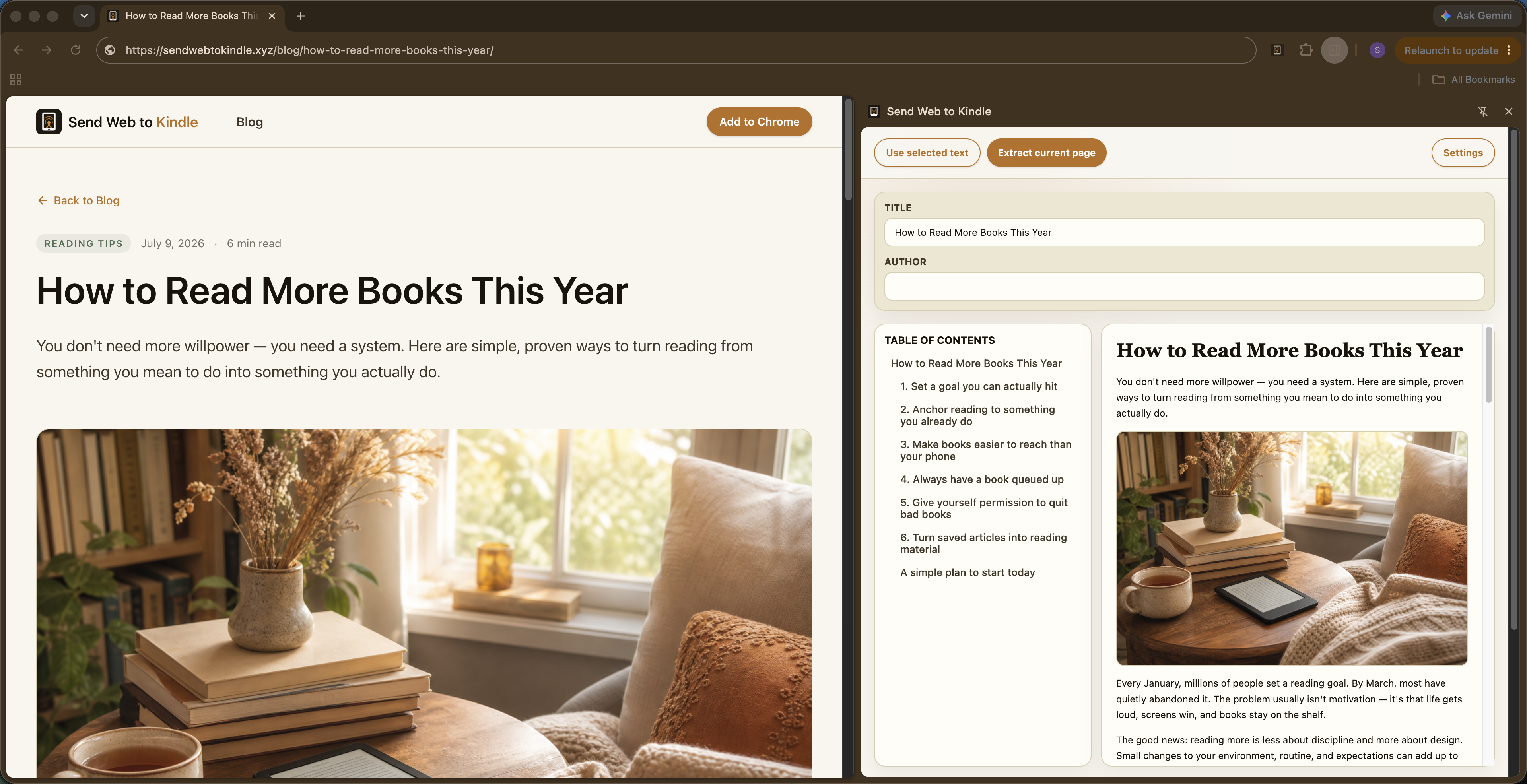
Browse to any article you want to read on your Kindle — a blog post, news story, Wikipedia page, anything. Click the Send Web to Kindle icon in your toolbar, then choose Preview and send Article.

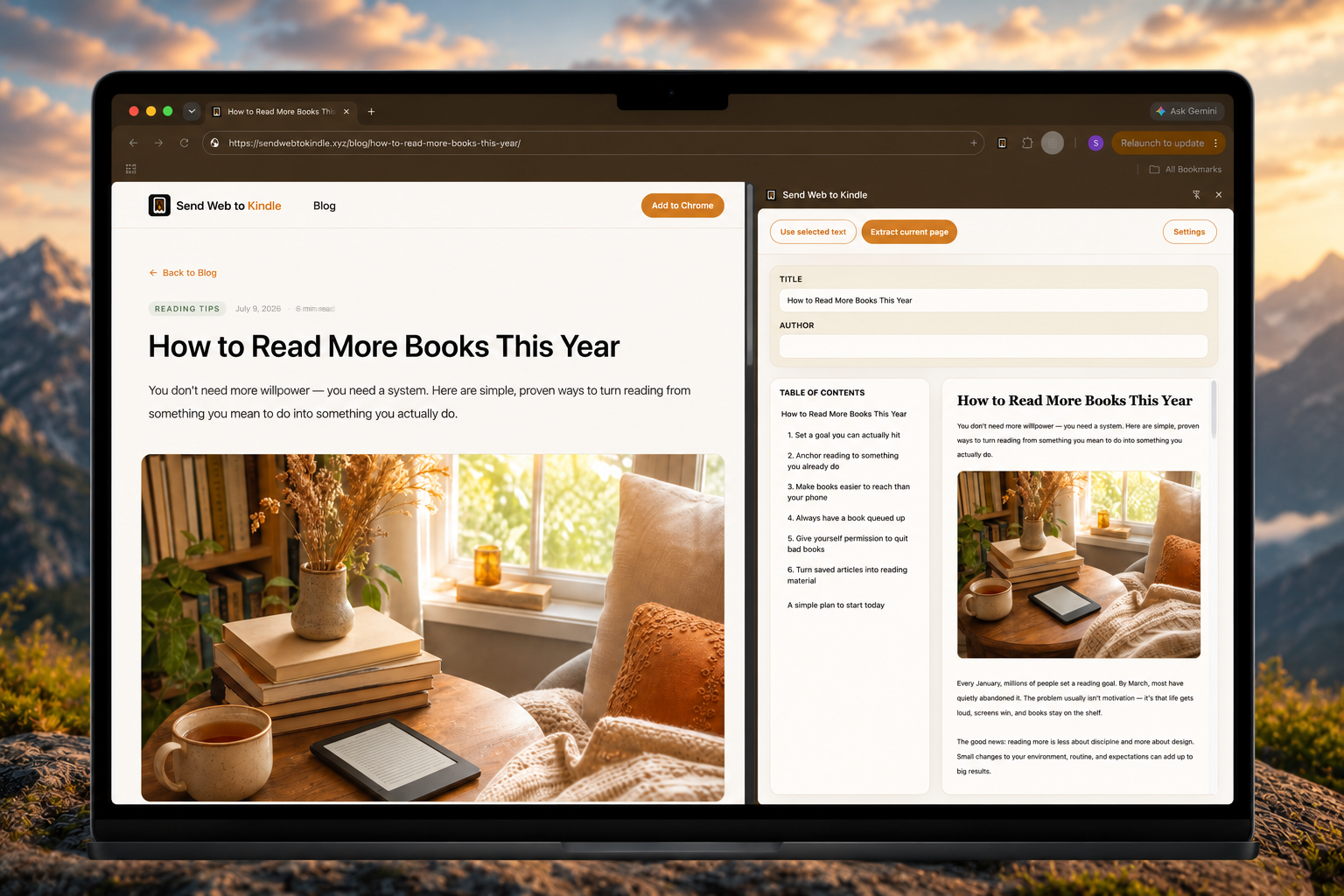
The side panel shows a preview of the extracted article. You can edit the title or author before sending.

Chrome on a MacBook showing the How to Read More Books This Year article with the Send Web to Kindle side panel open, previewing the article title and content

Open an article, then use the side panel to preview and send it to your Kindle.

Step 4 — Click "Send to Kindle"

Hit the button. The extension extracts the article text locally, generates an EPUB file on your device, and dispatches it via Gmail — all in a few seconds. You'll see a success toast notification when it's on its way.

Your Kindle syncs the new document within a minute or two (depending on your Wi-Fi). Open it from your library and read at your own pace.

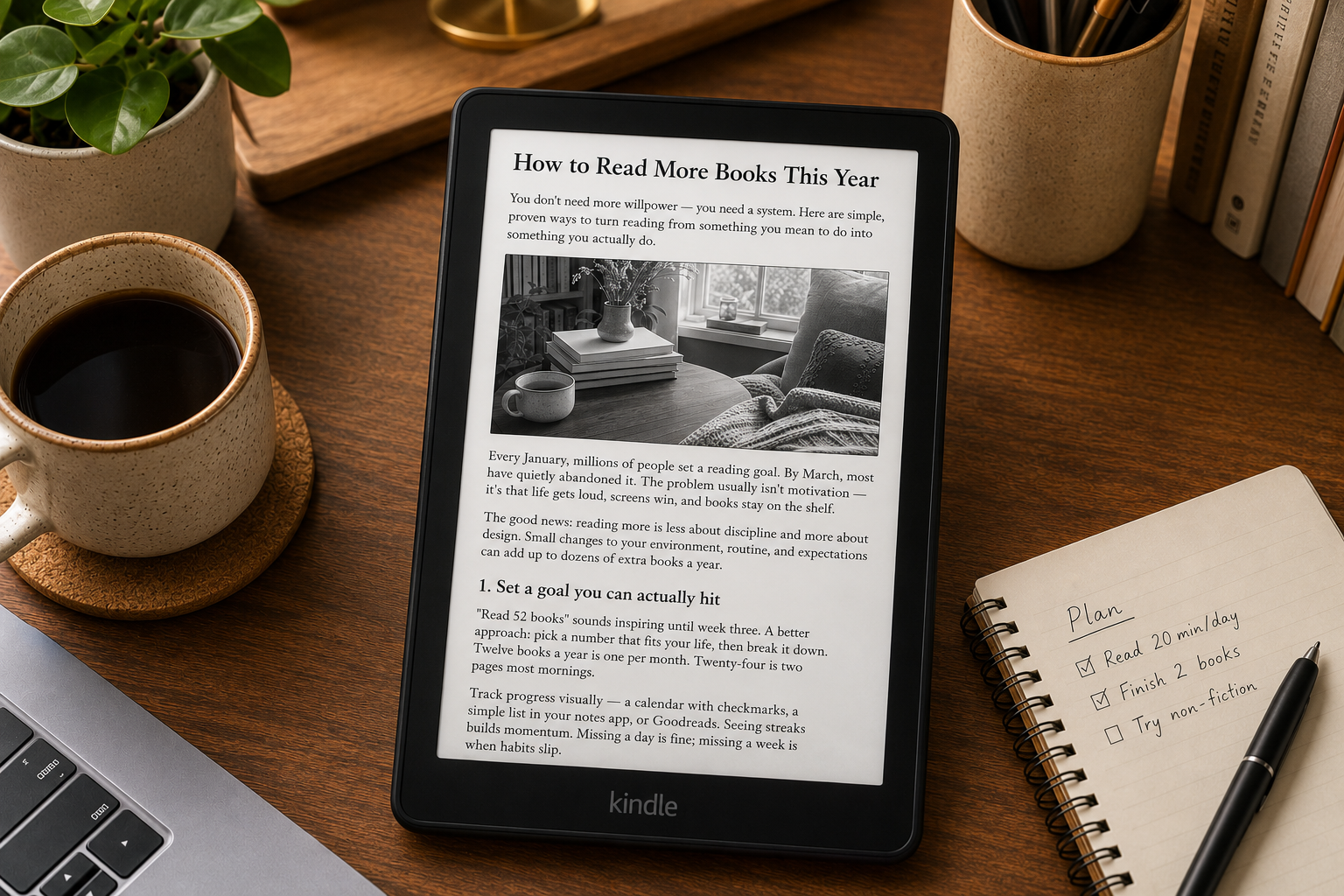
A Kindle e-reader screen displaying an article that was sent from the Chrome extension, showing clean typography and the article title at the top

The article arrives on your Kindle with clean formatting.

Tips & Troubleshooting

Article not showing on Kindle?

Make sure your Gmail address is added to Amazon's approved senders list. Amazon only accepts documents from pre-approved email addresses.

Paywalled or login-required pages

The extension reads what's visible in your browser tab. If you're logged into the site and can see the content, it can be converted. Paywalled content you don't have access to won't be extracted.

Pin the extension for quick access

Right-click the extension icon in Chrome's toolbar and select Pin so it's always one click away.

Ready to try it?

Secure, private, and fully local — no account required.

Add to Chrome